Para integrar Chatwoot con tu aplicación Vue.js, necesitas pegar el script del widget de Chatwoot en el archivo `index.html` de tu aplicación Vue.js.
Aquí te mostramos cómo hacerlo:
## Paso 1. Obtén tu script del widget[](https://www.chatwoot.com/docs/product/channels/live-chat/integrations/vue#1-get-your-widget-script "Direct link to heading")
Tu script del widget se puede encontrar en la configuración de tu Buzón de Sitio Web. Ve a Configuración -> Buzones -> Selecciona tu canal de Sitio Web > pestaña `Configuración`.
Si aún no has creado un buzón de sitio web, puedes encontrar las instrucciones paso a paso [aquí](https://app.chatwoot.com/hc/chatwoot-user-guide-cloud-version/es/chat-en-vivo-para-sitios-web/49662).
## Paso 2. Copia el script[****](https://www.chatwoot.com/docs/product/channels/live-chat/integrations/vue#2-copy-the-script "Direct link to heading")
Copia el script que fue creado en el campo `code` del canal.

## Paso 3. Pega el script aquí[](https://www.chatwoot.com/docs/product/channels/live-chat/integrations/vue#3-paste-the-script-here "Direct link to heading")
Abre tu proyecto Vue y pega el script en el archivo index.html, justo antes de la etiqueta de cierre `
`.
```
```
## Paso 4. Verifica
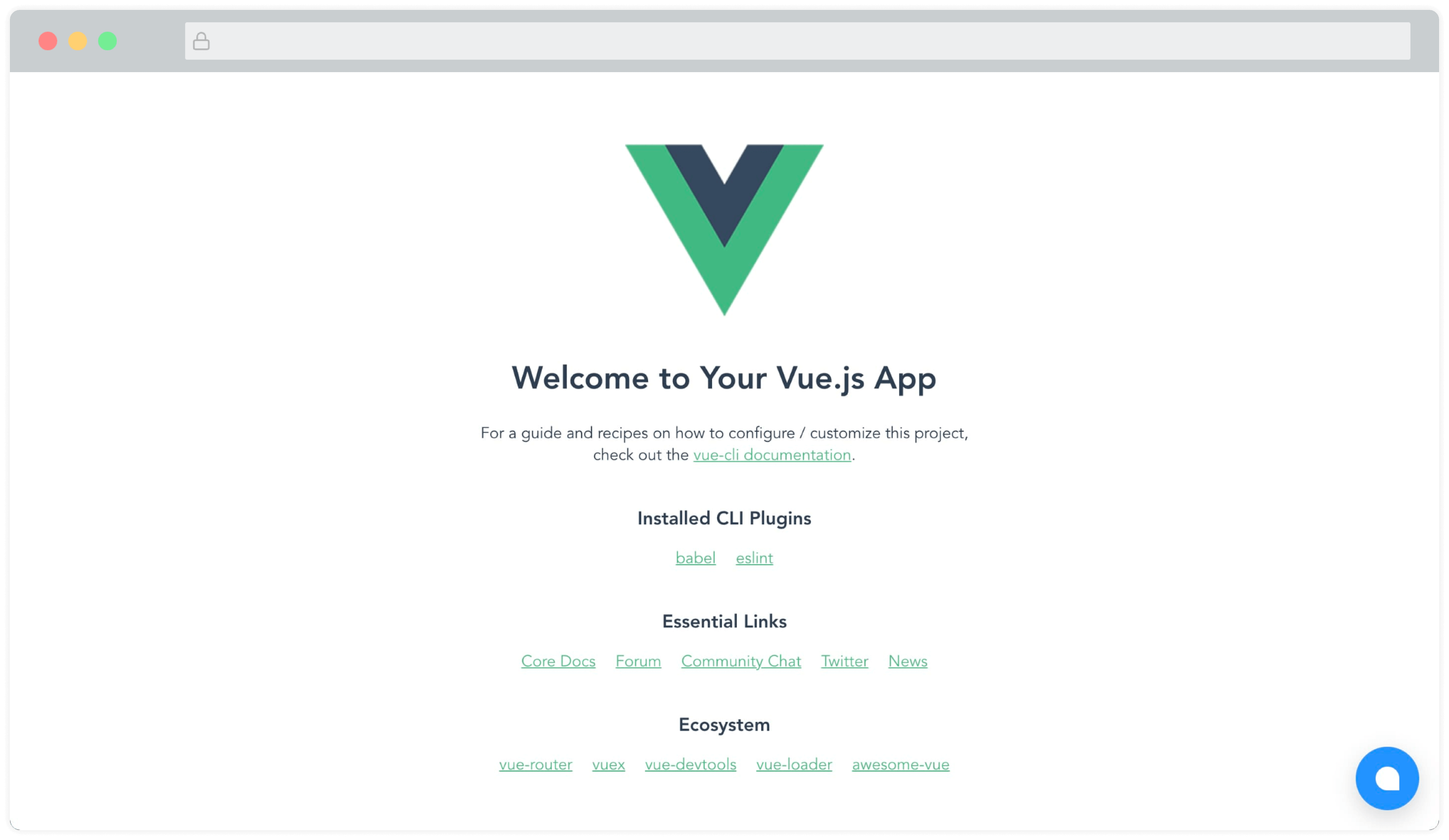
Ahora deberías poder ver el widget de Chatwoot en la página. Se verá algo así:
### Módulo Vue.js, Nuxt.js[](https://www.chatwoot.com/docs/product/channels/live-chat/integrations/vue#vuejs-nuxtjs-module "Direct link to heading")
Está disponible un módulo mantenido por la comunidad (Hecho por el increíble equipo de [@huntersofbook](https://github.com/huntersofbook/huntersofbook)) para integrar Chatwoot en tus proyectos Vue 3 y Nuxt 3. Puedes encontrar una [demo aquí](http://vue-chatwoot-plugin.vercel.app/).
* Ver [módulo Vue 3](https://github.com/huntersofbook/huntersofbook/tree/main/projects/chatwoot/packages/vue).
* Ver [módulo Nuxt 3](https://github.com/huntersofbook/huntersofbook/tree/main/projects/chatwoot/packages/nuxt).